


Essential for OBS Streaming! Multifunctional HUB Connects All Your Devices at Once!
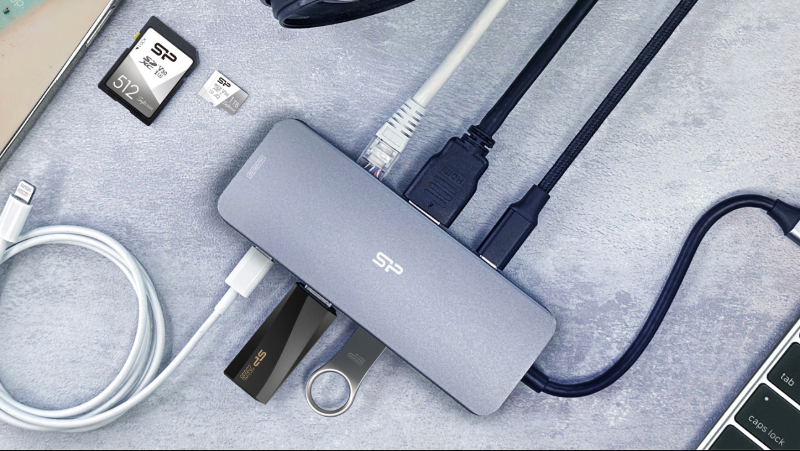 Streaming involves multiple devices, and a multifunctional HUB allows you to integrate them all together.
Product Line: Accessories
Application Scenario: OBS Streaming
There are many streaming software options available, with OBS being a top choice for Twitch and YouTube streamers. When streaming with OBS, you need a wired Ethernet connection for optimal performance because Wi-Fi isn't reliable enough. However, with monitors, cameras, microphones, keyboards, mice, and other gear, ports run out fast. That’s where a multifunctional HUB comes in. For OBS streaming, choose a HUB with an Ethernet port. This guide shows you how to use a multifunctional HUB to create your ideal streaming setup without worrying about port shortages or desktop clutter.
OBS Streaming Essential: How to Use a Multifunctional HUB to Integrate Your Streaming Equipment?
OBS is a powerful free streaming software with extensive customization options. You can easily add photos, videos, or text overlays and stream simultaneously to YouTube, Twitch, Facebook, and other platforms, making it widely popular. Before streaming, the basic setup requires a camera, microphone, capture card, and computer. An extra monitor is helpful for game streaming since it allows you to separate controls from gameplay for easier operation. Most importantly, internet connection is critical. While Wi-Fi bandwidth is adequate, wired Ethernet provides better stability for smooth streaming.
However, the biggest challenge is: with so many devices, how do you connect them all together? Desktop computers or laptops typically only have 2-3 USB ports, which clearly isn't enough. This is where a multifunctional HUB becomes invaluable, integrating all your devices! Common HUBs on the market typically feature 6-8 slots, including USB-A, USB-C, HDMI, and other ports. For OBS streaming, we recommend selecting a model with an Ethernet port for easy network cable connection.
Additionally, check whether the HUB supports pass-through charging, as streaming equipment consumes significant power, and pass-through charging helps maintain device battery levels. For example, the SP SR30 features Ethernet, HDMI, USB-C, and USB-A ports, supports 100W pass-through charging, and provides microSD/SD card slots. If you regularly edit stream highlights, you can insert a memory card to directly access your streaming files.
Next, we've organized the required ports for each device and share tips for setting up these devices:
| Device | Interface |
| Camera | USB-C / USB-A |
| Capture Card | USB-A |
| Microphone | USB-A |
| Keyboard, Mouse | USB-A |
First, connect the Ethernet cable and confirm the network signal is stable. Next, connect your camera to the capture card via HDMI, then use USB Type-C to connect it to the HUB. Subsequently, connect the microphone, keyboard, mouse, monitor, and other devices in order. Once hardware setup is complete, you can open OBS and configure the streaming software. Start by adding your camera and setting up the "main scene," while selecting your output microphone. To stream on YouTube, enter OBS "Settings," click "Stream" > "Stream Server" > "YouTube," then enter your stream key and password. Once configuration is complete, click "Start Streaming," and you'll be live on YouTube!
• • •