


Understanding SSD Lifespan|How Long Do SSDs Last and How to Check SSD Lifetime?
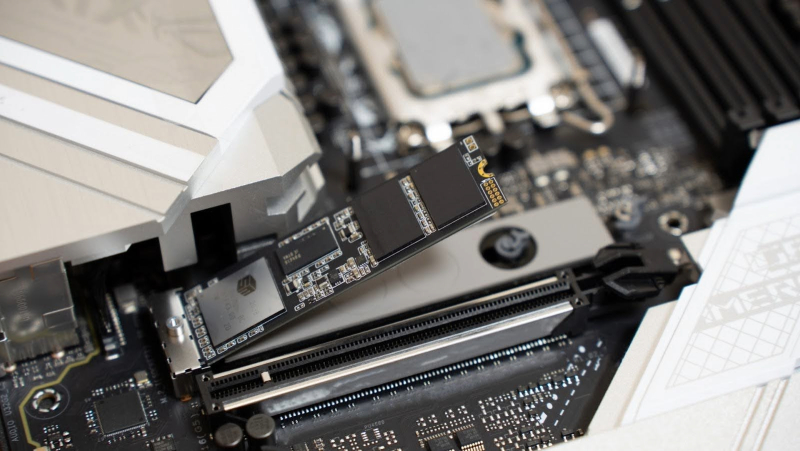
If your computer overheats or frequently shuts down, it may accelerate SSD wear. (Image source: photo-AC)
Solid-state drives (SSDs) are popular for computer storage thanks to their fast read and write speeds, low power consumption, and strong shock resistance. Despite being more durable than traditional drives, SSD lifespan can still be affected by factors such as poor heat dissipation, frequent power interruptions, and heavy continuous data writing. These issues can reduce performance and stability over time. This article explores the main factors that influence SSD lifespan and offers practical tips to help you maintain your SSD’s health and ensure reliable data storage!
How Long Do SSDs Last? Key Factors Influencing Lifespan
SSDs are built to be durable, but their lifespan varies depending on usage. Key indicators of SSD longevity are often listed in product specifications. TBW (Terabytes Written) shows the total amount of data the drive can write over its lifetime. DWPD (Drive Writes Per Day) measures how many times the drive can be fully written each day, which helps assess durability under real-world conditions. MTBF (Mean Time Between Failures) indicates the average time between potential drive failures. Understanding these metrics helps you choose an SSD that fits your needs and ensures long-term reliable performance.
TBW(Terabytes Written)
TBW measures the total amount of data an SSD can write over its lifetime. A higher TBW means the drive can handle more write operations and generally has a longer lifespan. Larger capacity SSDs usually have higher TBW values.
TBW is calculated using the formula:
TBW = (Storage Capacity × P/E Cycles) ÷ WAF
P/E cycles indicate how many write and erase operations each NAND cell can endure. SLC NAND has the highest durability, while QLC NAND has fewer P/E cycles. The WAF shows how much extra data the SSD writes compared to the host request. A higher WAF increases NAND wear and shortens SSD lifespan. In short, SSDs with higher TBW and lower WAF last longer.
DWPD(Drive Writes Per Day)
DWPD represents how many times the entire SSD capacity can be written daily during the warranty period. This is important for heavy-use scenarios such as servers, data centers, or AI workloads. DWPD helps evaluate how much daily write stress an SSD can handle, reflecting its reliability and durability.
DWPD is calculated as follows:
DWPD = (TBW × 1,000) / (365 × Warranty Period in Years × SSD Capacity in GB)
MTBF(Mean Time Between Failure)
MTBF measures the average time between consecutive failures under normal operation, usually in hours. A higher MTBF indicates better reliability. Factors affecting MTBF include manufacturing quality, usage conditions, firmware stability, and component quality. Manufacturers perform rigorous testing to ensure stability and durability before release.
Beyond these specifications, an SSD’s lifespan is also affected by workload intensity, operating temperature, power stability, and exposure to physical damage. After purchase, proper usage and care are key to extending SSD life.
How to Extend SSD Lifespan?
Simple practices can significantly prolong your SSD’s lifespan and prevent unnecessary wear. Keeping the drive cool, reserving free space, avoiding sudden power loss, and monitoring health all help maintain long-term stability. Here are practical tips to extend SSD life:
Maintain Proper Cooling
High temperatures accelerate NAND flash wear. Activities like gaming, video editing, or prolonged streaming can raise system heat. For desktops, adding a fan or choosing an SSD with a heat sink helps. For laptops, avoid blocking ventilation to ensure proper airflow.
Reserve Free Space
SSDs use mechanisms like Garbage Collection and Wear Leveling to distribute writes evenly. When nearly full, these systems become less efficient, increasing wear. Keeping 10–20% of the drive free helps reduce unnecessary strain.
Avoid Sudden Power Loss
Power surges or outages during read/write operations can corrupt data and damage hardware. Ensure stable power by checking your power supply, minimizing extension cord use, and using voltage stabilizers if needed.
Regularly Monitor SSD Health
You can easily monitor your SSD’s condition yourself. By developing the habit of regular checks, you can stay informed about its health. The simplest way on Windows is to search for “CMD” and open “Command Prompt.” Then type “WMIC” and press Enter, followed by “diskdrive get status” and press Enter again. If the result shows “OK,” your SSD is in good condition. If it shows “Pred Fail,” your SSD may have issues, so it’s best to back up your data as soon as possible.For macOS users, you can check your SSD’s status by entering “diskutil info /dev/disk0” in the Terminal.
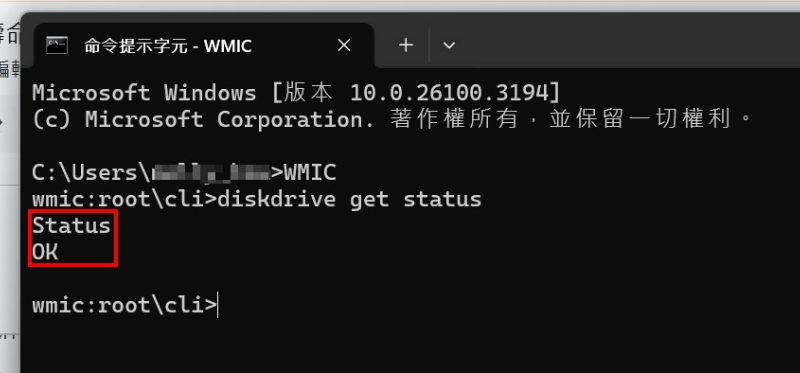
Check your SSD status by typing “CMD” in the Windows search bar.
In addition, many SSD brands offer free diagnostic software. For example, Silicon Power (SP) provides SP ToolBox, which allows users to check SSD health, including capacity, used space, total writes, and wear level. The software also offers a S.M.A.R.T. (Self-Monitoring, Analysis, and Reporting Technology) report to help users understand the SSD’s performance. With these tools, users can easily monitor their SSD’s health and prevent potential risks in advance.

SP ToolBox offers S.M.A.R.T. reports to help monitor SSD health.
What Are the Warning Signs of an SSD Failing?
How can you tell if your SSD is nearing failure? There are several telltale signs to watch for. If you notice slower read/write speeds, unusually long file transfers, or delayed program launches, it may indicate early degradation. Files that suddenly become inaccessible or trigger error messages are another red flag. Frequent blue screen crashes or an SSD that suddenly becomes undetectable by the system also signal potential failure. Once any of these symptoms appear, back up important data immediately and have the SSD checked or replaced to prevent data loss.
|
Severity |
SSD Failure Symptoms |
|
🔴 Critical |
|
|
🟠 High |
|
|
🟡 Moderate |
|
FAQ
• • •