


Complete Guide to SSD S.M.A.R.T: Monitor Drive Health & Prevent Data Loss
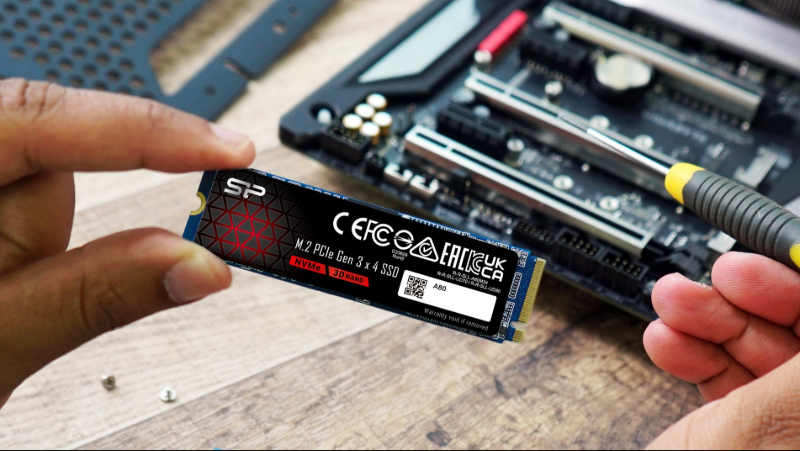
Unreadable files or slow performance may indicate hard drive issues. Diagnostic tools help detect problems early.
Is your computer slower than usual or are files taking longer to load? These could be signs your SSD has issues. Modern drives include S.M.A.R.T, a built-in system that monitors drive health and predicts potential failures. Understanding S.M.A.R.T helps you detect bad sectors, read/write errors, and other problems early, giving you time to back up important data. This guide explains S.M.A.R.T, the five key indicators, how to use SP ToolBox to check your SSD, and what to do if warnings appear.
Menu
-What is S.M.A.R.T Technology? Understanding Drive Health Monitoring
-Decoding S.M.A.R.T Metrics: Key Indicators Explained
-How to Check SSD S.M.A.R.T: Using SP ToolBox for Health Monitoring
-Responding to S.M.A.R.T Warnings: Critical Steps to Take
-Extending Drive Lifespan: Reducing S.M.A.R.T Warnings
-FAQ
What is S.M.A.R.T Technology? Understanding Drive Health Monitoring
S.M.A.R.T (Self-Monitoring, Analysis, and Reporting Technology) is a self-diagnostic system built into nearly all modern hard drives and SSDs. It continuously monitors your drive’s performance and tracks critical health metrics in real-time.
S.M.A.R.T monitoring is essential because most users only notice drive problems when files become corrupted or unreadable, making data recovery difficult or impossible. This technology allows proactive monitoring.
Its main value is providing early warnings. By analyzing S.M.A.R.T data, you can track write endurance, operating hours, average temperature, and other health indicators. This helps identify potential risks before drive failure, giving you time to back up important data and avoid loss.
Decoding S.M.A.R.T Metrics: Key Indicators Explained
SSD S.M.A.R.T technology shows multiple metrics that reveal your drive’s health. Most modern operating systems support S.M.A.R.T data access. Windows users can use tools like CrystalDiskInfo to view these indicators. Understanding them helps you assess your drive’s condition quickly and accurately.
Reallocated Sector Count
This S.M.A.R.T metric tracks the number of sectors identified as defective and successfully remapped to spare sectors. When the drive detects errors during read/write operations or verification, it marks problematic sectors as unusable and transfers data to reserved spare sectors, minimizing data loss risk.
Bad sectors typically result from physical wear on the drive. A higher Reallocated Sector Count indicates more severe physical damage. The ideal value is 0. If this S.M.A.R.T indicator appears or increases, take immediate action by backing up your data.
Current Pending Sector Count
This SSD S.M.A.R.T indicator shows sectors detected as unstable during operations but not yet confirmed as bad. These sectors will be reclassified and reallocated if subsequent operations fail. A rising Current Pending Sector Count signals growing instability—a critical warning that your SSD may be approaching failure.
Uncorrectable Sector Count
This S.M.A.R.T metric indicates sectors where read/write errors occurred that couldn't be repaired by the drive's internal error correction mechanisms. These errors typically signify permanent sector damage, representing a serious issue. Any value above 0 means some data may be corrupted or unreadable.
Power-On Hours
This S.M.A.R.T indicator tracks the total time your drive has been powered on and operational, including idle periods. Values are typically measured in hours, though some manufacturers use minutes or half-minutes.
An extended power-on duration increases aging risk for traditional mechanical drives. For SSDs, lifespan depends on both usage time and write cycles. Power-On Hours helps assess your drive's usage level and aging condition through S.M.A.R.T monitoring.
Operating Temperature
Temperature is a critical S.M.A.R.T health indicator that directly impacts drive performance. Excessive heat causes system instability. SSDs typically operate optimally between 0°C and 70°C, while HDDs perform best between 0°C and 60°C. Manufacturer specifications provide exact ranges for reference.
High temperatures may not cause immediate failure, but devices often throttle performance to reduce heat generation. Prolonged high-temperature operation accelerates aging and reduces lifespan. Consider installing heat sinks or improving chassis cooling to maintain stable operating temperatures and optimal S.M.A.R.T readings.
CrystalDiskInfo interface example (image source: CrystalDiskInfo)
How to Check SSD S.M.A.R.T: Using SP ToolBox for Health Monitoring
In addition to free tools like CrystalDiskInfo, many SSD brands offer their own monitoring software. SP provides SP ToolBox, a dedicated utility for quickly checking SSD S.M.A.R.T data and overall health. Here’s how to use SP ToolBox effectively.Using SP ToolBox is simple: download and install this free software from the official SP website. After installation, you're ready to start monitoring your SSD S.M.A.R.T data immediately.
1、View Device Basic Information
After launching SP ToolBox, the software automatically detects SP SSDs installed on your system. You can view essential details, including SSD model, firmware version, capacity usage, Total Bytes Written (TBW), and current temperature. This provides a comprehensive overview of your drive's status through S.M.A.R.T monitoring.
2、Monitor SSD S.M.A.R.T Health Status
SP ToolBox provides real-time SSD S.M.A.R.T health monitoring, displaying current health percentage and estimated remaining lifespan. This allows continuous tracking of SSD longevity. If detection results show "Warning," this indicates potential SSD wear detected by S.M.A.R.T technology. Back up data immediately and evaluate whether repair or replacement is necessary.
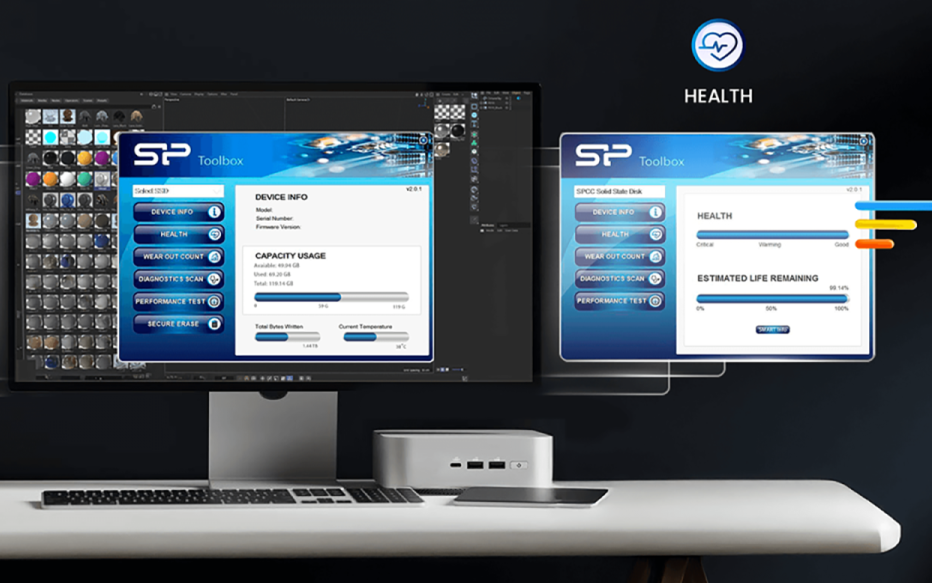 SP ToolBox can automatically detect SP SSDs installed in the computer and display basic information along with the SSD’s health status.
3、Analyze Wear Status and Block Information
In the Wear Out Count section, SP ToolBox shows key SSD S.M.A.R.T data, including total read, total write, and total erase counts. Read and write volumes indicate actual usage, with activities like video editing or heavy data access usually generating high write volumes. Erase counts reflect NAND cell wear and help evaluate controller performance.The Block Info section helps assess SSD aging using S.M.A.R.T data. A rapid rise in bad block counts over a short time often signals a higher risk of SSD failure and requires prompt attention.
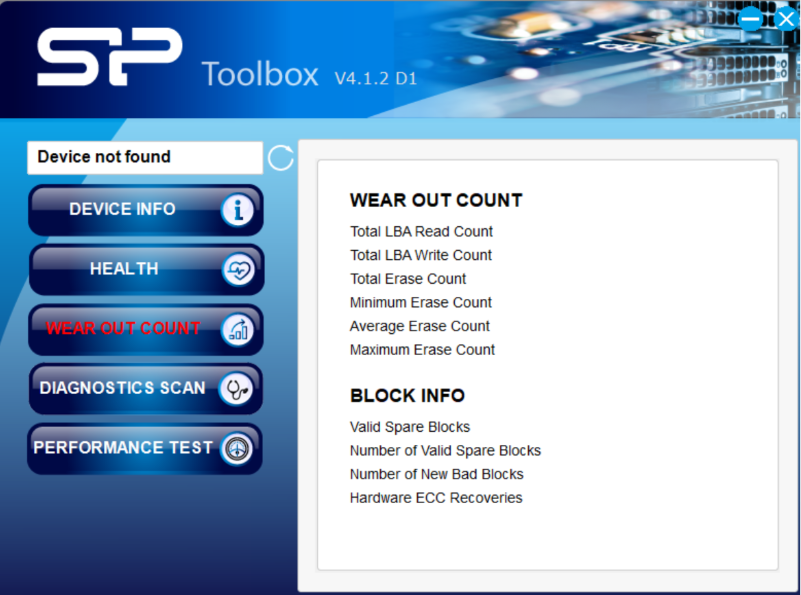
SP ToolBox also allows users to check SSD wear levels and block information.
SP ToolBox delivers comprehensive SSD S.M.A.R.T diagnostics spanning basic information, health status, wear metrics, and block-level details. This empowers you to accurately assess SSD usage patterns. Check these S.M.A.R.T metrics regularly to detect potential issues early, prepare data backups, and plan replacements before complete drive failure causes irreversible data loss.
*The performance test and secure erase features in SP ToolBox are available only for industrial SSD products.
Responding to S.M.A.R.T Warnings: Critical Steps to Take
Receiving a S.M.A.R.T warning doesn't guarantee your drive is already damaged, but it's impossible to predict how long until complete failure occurs. However, SSD S.M.A.R.T warnings typically indicate declining health with potential imminent failure. Take immediate action: stop storing or downloading new files to prevent additional writes that could accelerate failure.
Your priority is backing up data. The most convenient approach is to prepare an external drive with sufficient capacity and transfer important files immediately.
S.M.A.R.T warnings carry different implications for different drive types:
- HDD S.M.A.R.T Warnings: Typically indicate physical damage such as scratched platters causing bad sectors, or motor and read/write head abnormalities.
- SSD S.M.A.R.T Warnings: Primarily monitor controller abnormalities or write endurance depletion, indicating whether the SSD is approaching its end-of-life threshold.
Extending Drive Lifespan: Reducing S.M.A.R.T Warnings
Master these simple techniques to effectively reduce the likelihood of S.M.A.R.T warnings and extend your SSD's operational life. Remember these three essential tips for optimal SSD S.M.A.R.T health:
Avoid Prolonged High Temperatures and Vibration
Maintaining proper cooling is essential for both SSDs and HDDs. Extended computer use, such as video editing, gaming, or streaming, can raise drive temperatures and may trigger S.M.A.R.T warnings. Desktop users can add motherboard fans or select SSDs with built-in heat sinks. Laptop users should keep ventilation ports clear to ensure efficient heat dissipation. Protecting HDDs from physical shocks helps preserve internal components and maintain accurate S.M.A.R.T readings.
Prevent Sudden Power Loss
Power stability greatly affects drive performance and S.M.A.R.T health, especially during read and write operations. Sudden power loss can interrupt data writing, potentially causing file corruption and hardware damage. In SSDs, power loss while writing may corrupt NAND flash blocks or disrupt controller memory, which S.M.A.R.T monitoring can detect. In HDDs, read and write heads may stall improperly on platters, raising the risk of scratches and bad sectors.
Regularly Monitor S.M.A.R.T Drive Health
Maintaining drive longevity depends on regular SSD S.M.A.R.T health checks. Use diagnostic tools to monitor S.M.A.R.T indicators for warning signs like increasing bad sectors, rising unallocated sectors, or SSDs approaching write endurance limits. Early S.M.A.R.T detection enables prompt data backup or drive replacement, preventing irreversible data loss while ensuring long-term system stability.